golang-telegram机器人初探
Golang Telegram机器人初探
最近学习了golang,想着先写个什么项目来练练手,正好现在telegram使用的比较的多,手上又有比较多的服务器,虽说已经有了网页探针但是想着要是能用机器人实现一个服务器探针,显示服务器状态并在服务器出现掉线等情况的时候发消息通知一下好像也挺不错。
起步
首先在TG里面找到机器人之父@BotFather创建我们的机器人,输入相关信息后我们便能得到机器人的token。
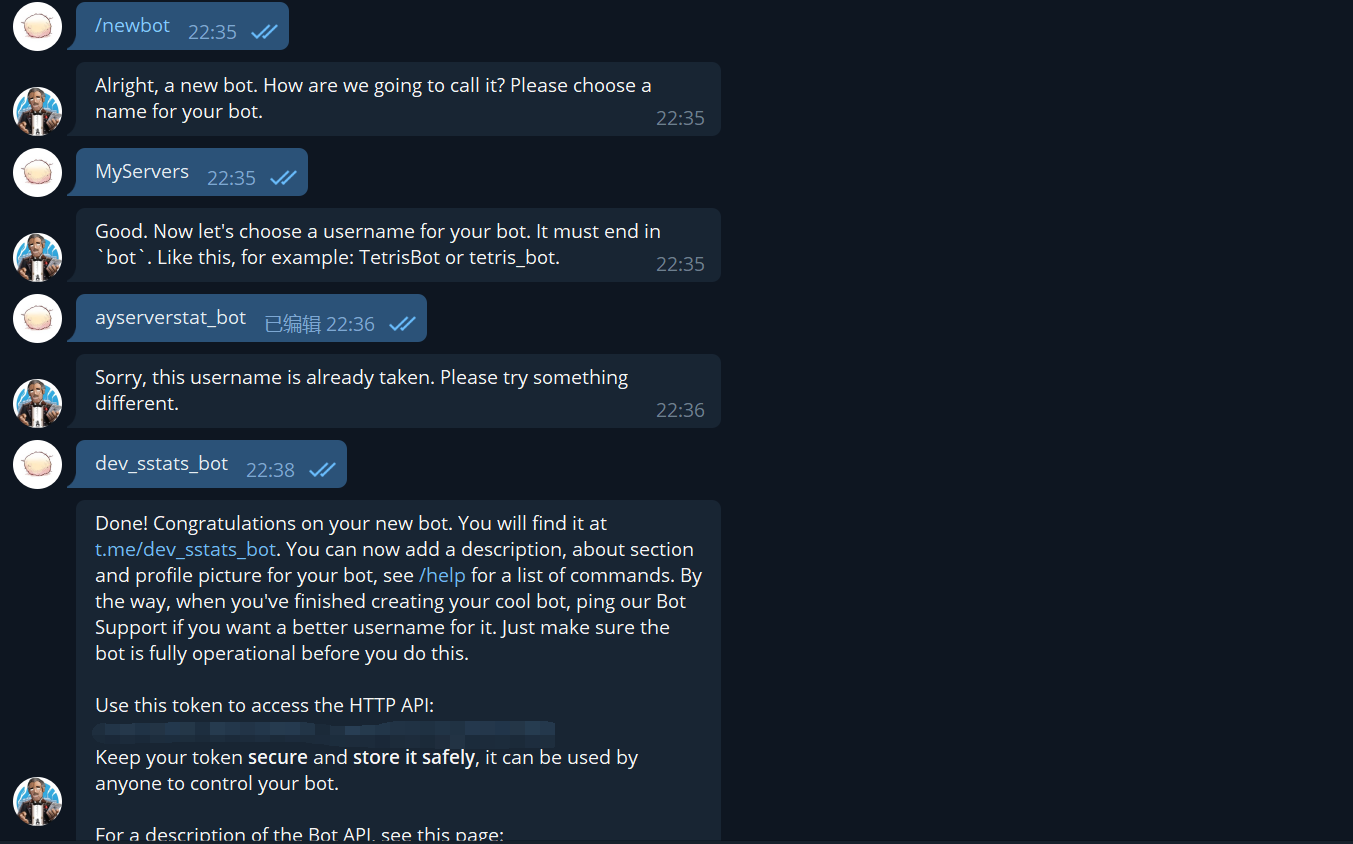
接着在我们的开发环境中编译安装Golang版本的Telegram机器人api。
https://github.com/go-telegram-bot-api/telegram-bot-api
go get -u github.com/go-telegram-bot-api/telegram-bot-api (确保已经安装了git等go get需要的依赖)
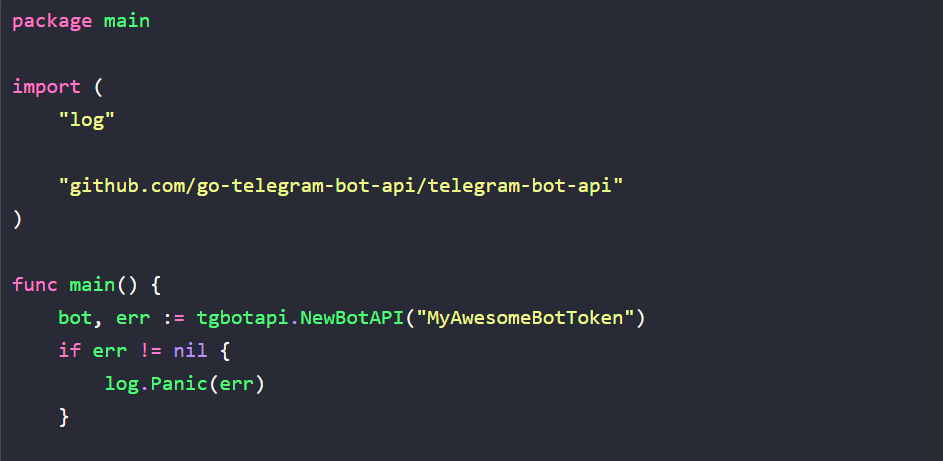
尝试一下github页面上提供的“复读机”demo,记得替换MyAwesomeBotToken为你自己的机器人的token。
1 | package main |
然后使用go run bot.go,再向你的机器人发送一则信息,可以看见机器人成功复读。
开发准备
阅读官方的BOT开发介绍文本,以及api文档了解一下bot可以做什么,以及大概有哪些接口。
Telegram Bot和真实的用户账户有以下不同:
- 无在线状态或者上一次活跃时间,以机器人表示取而代之
- 机器人的云储存空间相对有限,老的信息会在被处理后的不久被删除
- 机器人不能主动对用户发起对话,除非被用户添加到群组或者用户向机器人先发送了信息。
- 默认情况下,被加入群组后机器人不会接收所有的信息
而BOT还可以进行一些特殊的操作,比如两种键盘,额外的命令接口,文本格式化等等,具体查看下文。
行内模式
用户可以采用行内模式与机器人交互,即在文本输入框内用@botusername开头并输入请求,用户可以在他们的聊天或者群组/频道力使用该模式交互,用户输入内容后,即使还没有点击发送,但是机器人已经可以接收到请求。demo
支付平台
Telegram 机器人可以发送一则包含了商品信息的信息并带上支付按钮,用户点击后可以在tg内打开支付接口,使用信用卡、apple pay等方式支付。
游戏平台
机器人可以向用户提供html5游戏,并可以记录玩家的得分
键盘
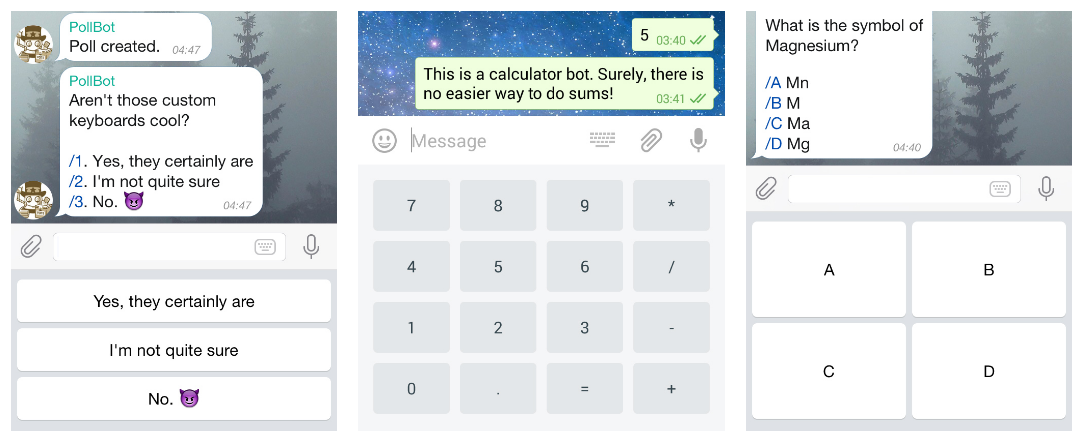
机器人可以在用户的设备上显示虚拟的预设键盘,用以获得用户的“规整一些”的输入,当机器人发送信息的时候可以传递一个特殊的预定义的键盘,应用程序接收到后会把键盘展示出来,点击其中的按钮,信息会马上被发送到聊天页面中,通过这种方式可以大幅简化用户和机器人的交互(该键盘更多的是起到一个快速的,使用预设回复的功能)
内联键盘
除了在输入框之下显示键盘,bot还可以直接在信息底部显示键盘,和上面的键盘不一样,内联键盘的按键按下后并不会把信息发送到聊天中,而是触发后台的工作。
Instead, inline keyboards support buttons that work behind the scenes: callback buttons, URL buttons and switch to inline buttons.
如使用callback 按钮,机器人可以更新已有的信息或者键盘,可以让聊天看起来整洁一些。可以查看下面的几个机器人@music, @vote, @like。
命令
用户还可以通uff过命令来和机器人交互。命令总是以/开头,不能超过32个字符,可以使用拉丁字符数字和下划线。用斜杠开头的信息总会被传递给机器人,包括对于该信息的回复以及@机器人的信息。
Telegram应用会在用户输入/后进行提示(需要开发者向BotFather提供命令的列表),点击提示即可直接发送命令。命令在聊天中也会高亮显示,若其他用户也点击了命令,命令也会立即发送。如果多个机器人在同一个群组中,对于同名的命令,可以使用/command@botname的形式来发送命令。
全局命令
为了用户更好的和机器人交互,Telegram要求所有的开发者实现几个基本的命令,应用会对这几个命令提供快捷方式。
- /start 用户开始和机器人进行交互
- /help 返回帮助信息
- /setting 返回机器人的设置界面
用户在首次向机器人发信息之前会看到/start按钮,在菜单中(机器人信息页)可以看到帮助和设置链接。
格式化
可以在信息中使用bold, italic, fixed-width text and inline links,客户端会对他们进行渲染。
隐私模式
隐私模式下运行的机器人不会接收群组里其他用户发送的信息,它们只会接受
- /开头的信息(命令
- 回复机器人自己发出的信息
- 服务信息(用户加入或者退出)
- 所在的频道的信息
机器人默认都是隐私模式运行的,除非机器人被设置成管理(也可以关闭)。如果要关闭管理员权限机器人的接收信息权限,需要重新添加到群组中,用户能看见当前机器人的隐私设置
深度链接
Telegram机器人有名为深度链接的机制,允许在开始机器人的时候传递额外的参数,可以是启动机器人的命令,授权码。机器人的链接如下
https://t.me/<bot username>,我们可以添加额外的参数https://t.me/triviabot?startgroup=testollowing a link with the start parameter will open a one-on-one conversation with the bot, showing a START button in the place of the input field. If the startgroup parameter is used, the user is prompted to select a group to add the bot to. As soon as a user confirms the action (presses the START button in their app or selects a group to add the bot to), your bot will receive a message from that user in this format:
1
/start PAYLOAD
PAYLOADstands for the value of the start or startgroup parameter that was passed in the link.Deep linking Example
Suppose the website example.com would like to send notifications to its users via a Telegram bot. Here’s what they could do to enable notifications for a user with the ID
123.- Create a bot with a suitable username, e.g. @ExampleComBot
- Set up a webhook for incoming messages
- Generate a random string of a sufficient length, e.g.
$memcache_key = "vCH1vGWJxfSeofSAs0K5PA" - Put the value
123with the key$memcache_keyinto Memcache for 3600 seconds (one hour) - Show our user the button
https://t.me/ExampleComBot?start=vCH1vGWJxfSeofSAs0K5PA - Configure the webhook processor to query Memcached with the parameter that is passed in incoming messages beginning with
/start. If the key exists, record the chat_id passed to the webhook as telegram_chat_id for the user123. Remove the key from Memcache. - Now when we want to send a notification to the user
123, check if they have the field telegram_chat_id. If yes, use the sendMessage method in the Bot API to send them a message in Telegram.
计划功能
- 本文标题:golang-telegram机器人初探
- 本文作者:aoyouer
- 本文链接:https://i.notesai.com/posts/go-first-tgbot.html
- 版权声明:本博客所有文章除特别声明外,均采用 CC BY-NC-SA 4.0 许可协议。转载请注明出处!